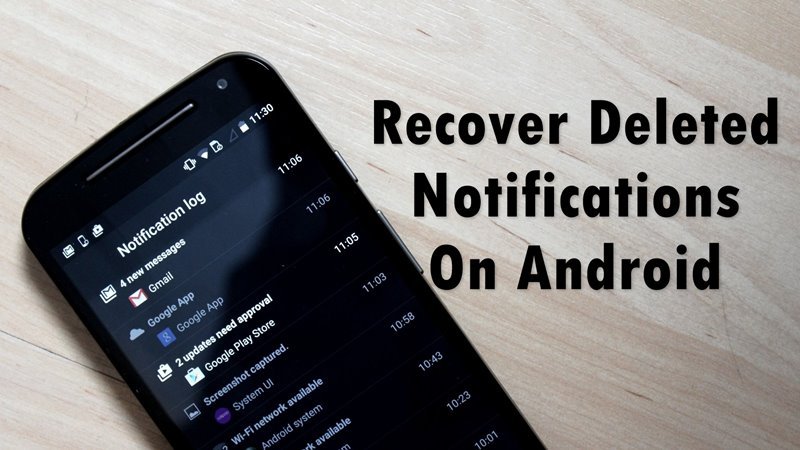
Android notifications can fill up rather quickly depending on how much of a social butterfly you are, and there might be occasions when you accidentally cleared the notifications without checking properly, only to realize that you have missed out on something important. If you’ve done this before and memories of swiping something important into non-existence by accident return, all hope is not lost! Let’s find out how.
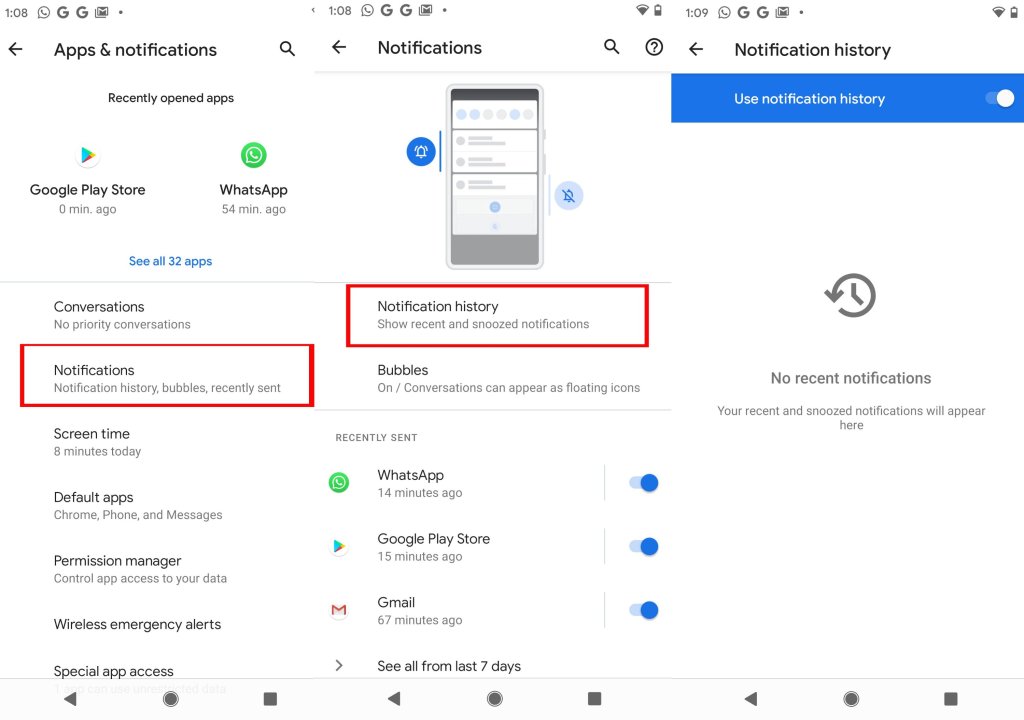
Prior to Android 11, things were a bit tricky in case you wanted to take a peek at old notifications. Stock Android 11 users, however, can recover and see recent notifications on their Android device without too much fuss.
Now that Android 12 is widely available for most smartphones and the different Android 12-based skins, it is an easy thing to retrieve your Android notifications in double quick time. Just in case you own a smartphone with an Android skin that doesn’t natively support this feature, there are several other apps that could do this for you.
Even if you swipe away notifications from the drop-down tray by accident, you can still access them provided you have enabled this feature and check it within 24 hours. Let’s first learn how to enable the ‘Notification History’ feature on stock Android devices running Android 12.
Launch the Settings menu on your Android smartphone that runs on stock Android 12.
Scroll down to Notification & status bar from the menu and select More settings.
Tap Notification history and ensure that the alert slider is enabled.
Your smartphone will now keep a log of all notifications and it can be viewed for 24 hours.
How to see old notifications on ColorOS 11
Oppo smartphones that run Color OS 11 also lets users access deleted notifications. The steps here are similar to what we saw on stock Android. This also means the user will need to turn on the ‘Notification history’ feature to start logging data. To access the notification history on ColorOS 11, you need to follow these steps


